KEYBOARD SHORTCUTS
Ctrl + N = New project
Ctrl + L = Open project
Ctrl + S = Save project
Ctrl + Shift + S = Save project as
Ctrl + E = Open Export panel / export with current settings
Ctrl + Shift + E = Export program as, when Export panel is open
Ctrl + T = New timeline
Ctrl + left mouse click = Select multiple images or timeline clips
Ctrl + A = Select all clips on all timelines
Ctrl + C = Copy selected timeline clips
Ctrl + V = Paste behind the cursor
Ctrl + Shift + V = Paste on same position
Ctrl + F = Fit[n]count - default value 1
Shift + left mouse drag = Add picture/effect across multiple timelines
Space = Play / pause preview
Left / Right arrow = Move timeline cursor by 1 second
Page Up / Page Down = Move active timeline up / down
DEL = delete pictures from library and selected clips from timelines
type "debug" = show hidden Debug Menu
NEW IN IGNIS STUDIO 3.0
Effects library, AuraX export, direct AuraX upload over WiFi, device scan, device identify/blink,
timeline name, per-timeline LED pixel count, color palettes, effect editing in Properties,
Windows installer and macOS DMG build.
Photon device instruction:
download PDF
Photon device instruction:
download PDF
Basic pack of images:
download
Support:
email: info@ignisshop.com
WhatsApp: +420608847408
INSTRUCTION
- MENU
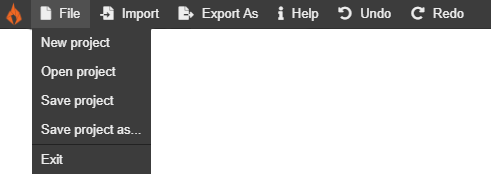
- In the top bar you have several important buttons:
- SAVE FILE - When it comes to saving project, it is always saved within all used files like images and audio. So transfering of proeject between devices or friends is safe and really easy.
Size of every project depends on numbers of images and audio that you use in the project.
Every project that you will save in this program will be in format .ipr that means that they are fully editable when you open them again.
- IMPORT - In case you want to import projects, it also has to be in format .ipr to be able to modify.
- EXPORT - Current version has two export modes. Export Photon keeps the original .pix format for Photon devices. Export AuraX is used for AuraX devices and .axp programs, including direct upload to devices on the same WiFi network.
- OTHER BUTTONS - Other buttons like Undo and Redo will be helpfull in case of your mistake action.
- DEBUG MENU - Type debug on your keyboard to show hidden Debug Menu with Developer tools, Reload, Rebuild Thumbnails, GPU and Clean library.
- IMAGE LIBRARY
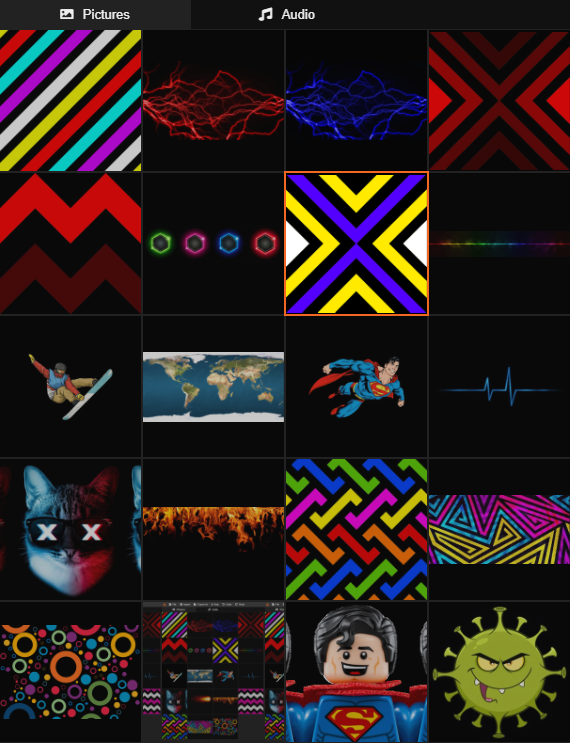
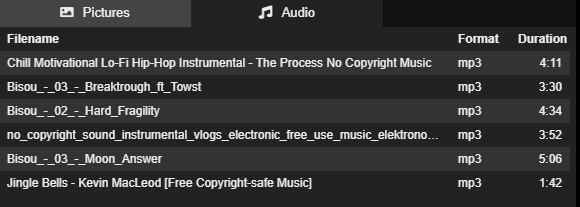
- Here you can see how image and audio library looks like. When you want to import files, you can either click to IMPORT or you can easily drag and drop files straight from your computer folder. Program supports all following file formats: JPG, PNG, GIF, BMP, MP3, OGG.
- To import picture you can either drag and drop to desired timeline, or you can select picture in library (so it has orange border around) and make long left click and slide in timeline, where you wanna transfer a picture. You can also mark more pictures in gallery with press CTRL + left click.
- In the library you can also delete files by right mouse click or hit DELETE button on your keyboard. In case of massive removal - select muliply files and then right mouse click or hit DELETE button on your keyboard.

- EFFECTS LIBRARY
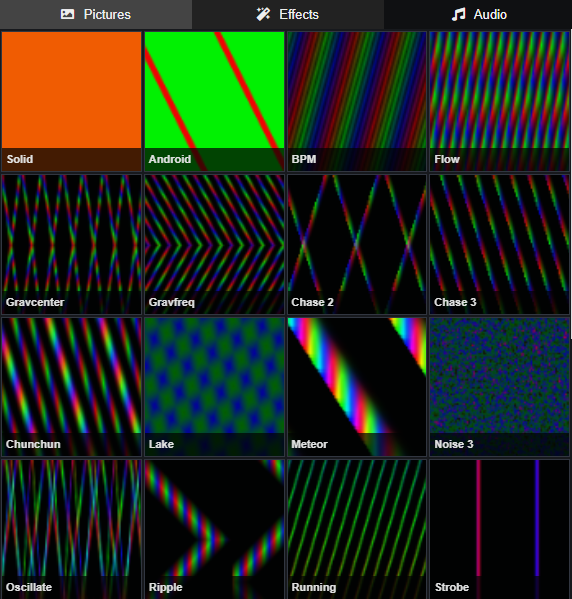
- The current version has an Effects tab next to Pictures and Audio. Effects are generated LED animations designed for creative light programming.
- You can drag and drop an effect to the timeline the same way as a picture.
- Effects are edited after they are placed on the timeline. Click the effect clip and edit it in Properties - Effect.
- Depending on selected effect you can edit speed, density/intensity, width/size, colors and color palette.
- Effects are rendered into Photon .pix export and are also supported by AuraX .axp export.
- MUSIC LIBRARY
- Audio import worsk the same way as images import. You easily just drag and drop any audio and place it to timeline. Programs accept MP3 or OGG format.
- On audio timeline you can moving with file from right to left and you can also go in the to a negative value, so you dont have to cut your audio.
- PREVIEW
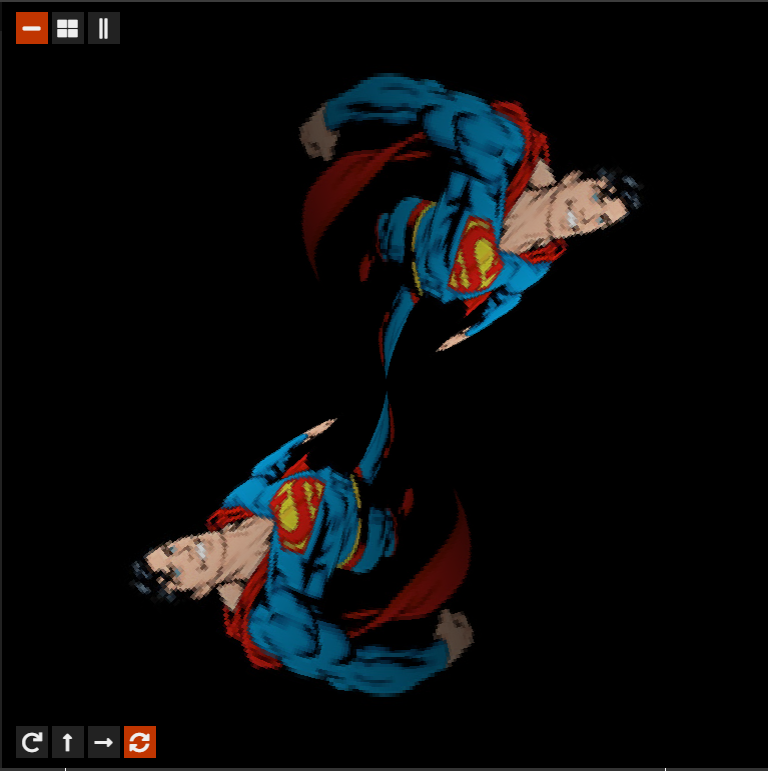
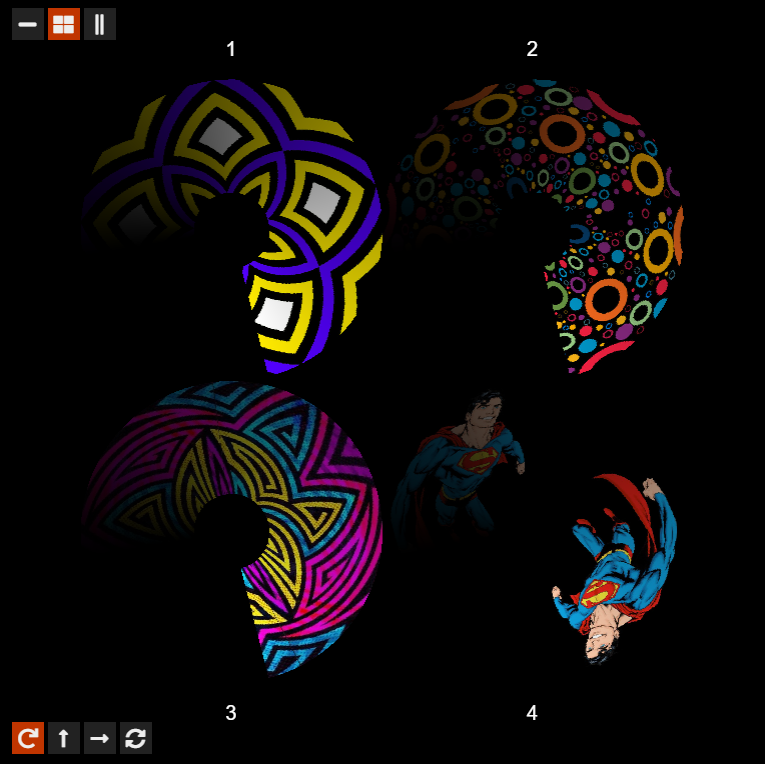
- Live preview is rendering pictures in real time and color visualization. You can freely move in your preview by left click and drag. You can also zoom in and out in your preview by using scroll wheel. Live preview also showing all set parameters that image like speed, dimming, space between pictures, mirror effect or accelerometer mode. The preview shows the moment, where red indicator is on timeline.
-
- In the left-bottom corner of the preview are 4 icons, which set display preview of selected image on timeline.
You can set:
You can set:
-
- POI (circle preview)
- VERTICAL(vertical line preview)
- LEVIWAND
- STAFF
- On the left-top is 3 buttons where you can set 3 styles of previews layouts.
-
- 4 previews in one row (max 4)
- 4 previews in the grid (max 4)
- VERTICAL previews in one row (up to 30 previews)
-
- You can also set the default preview of timeline in the timeline preferences. All pictures that will be added after the seting default preview, will be automatically display the same way. This is a great tool for more complex programming.
- PROPERTIES OF IMAGES
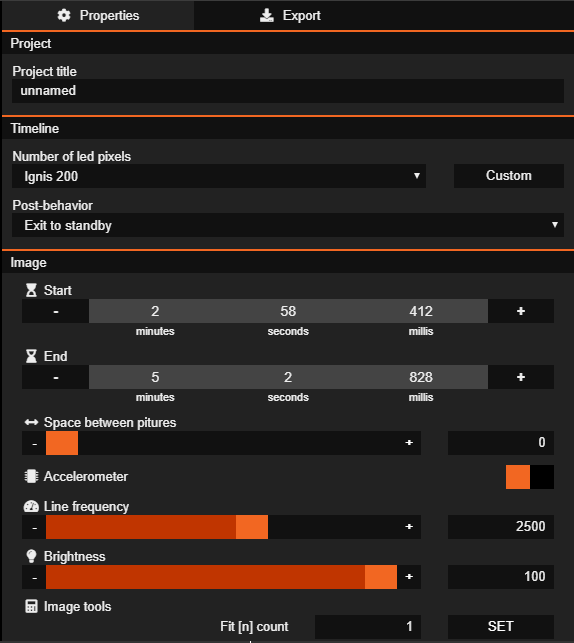
- In this part you have 3 section. In Project you can edit name of the project.
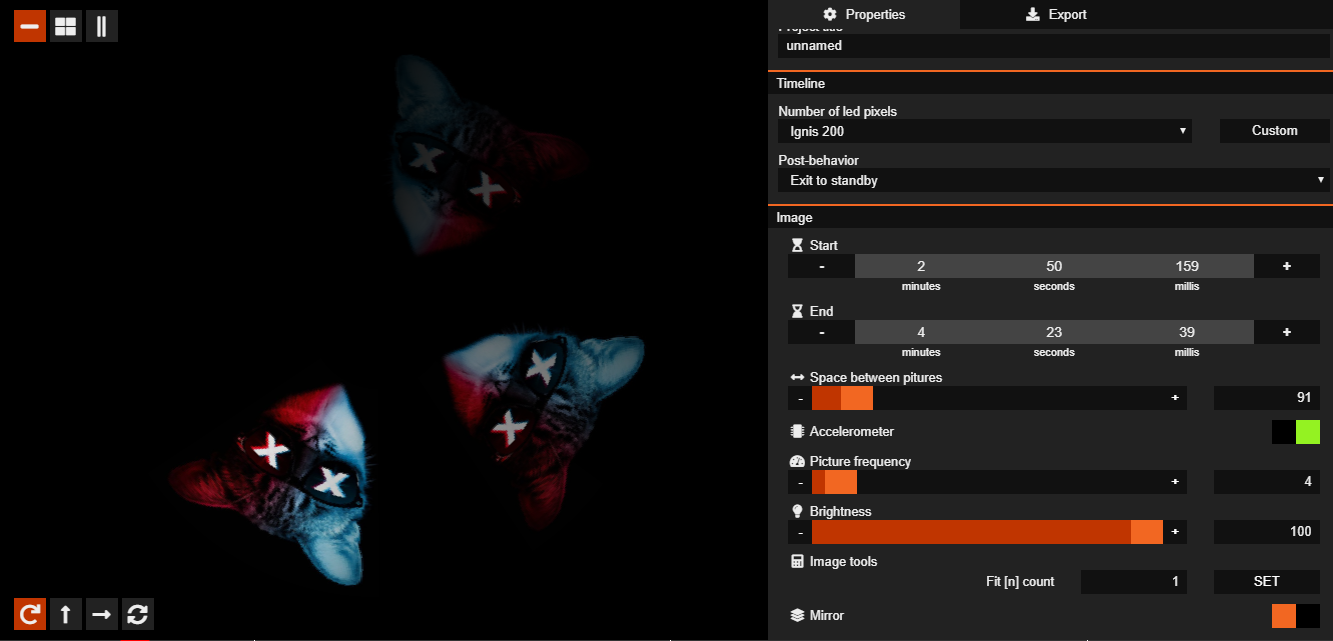
- In Timeline section you can edit setting of selected timeline. Here you have to set final number of led pixels. This number you can find on the sticker on your Photon quipment. Like this:
 Number of pixels can be chosen from presets or you can apply custom number. In Post-behavior section you choose what the device should do after the end of the program.
- Thirth Image section you can set any parameters of each selected image from any timeline such as start, end, space between pictures, etc.
-
-
- START and END time of picture, you can write value over the numbers and confirm with ENTER or you can use + or buttons.
- SPACE BETWEEN PICTURES here you can set how many pixels of empty space will be between pictures
- ACCELEROMETER is usefull tool when you need perfect image regardless of speed and time. You can set how many images will be in one round. The rendering speed will be automatically calculated according to the speed of your rotation.
-
-
- LINE FREQUENCY/PICTURE FREQUENCY
this parameter is setting your final rendering speed. You must set ideal speed for your moving or use accelerometer, where you can set how many images will be in one round.
LINE FREQUENCY For example:
2000 - 2500 row/s is perfect for standart poi spinning
500 - 800 row/s staff spin
300 600 rows/s for leviwand and hula hoops
-
-
- BRIGHTNESS
Here you can set 0 100% brightness of selected image.
- EFFECT PROPERTIES
When you select an effect on timeline, Properties panel shows effect settings. Depending on selected effect you can edit Speed, Density / Intensity, Width / Size, color slots, custom color and preset color palette. Solid effect uses one color, other effects can use more colors according to their logic.
- COLOR PALETTES
Current version contains ready color palettes like Rainbow, Fire, Ocean, Forest, Party, Sunset, Polar, Lava, Pastel, Neon, Candy, Aurora, Vintage, Police, Matrix, Electric, Amber Teal and more. You can also set custom colors manually.
- IMAGE TOOL:Fit [n] count
This function gives you special parameters, where you can set how many times image will be displayed between their start and ending time. This is very usefull tool for some special effects. For example if I want to acheieve the diode crossing from one side to the other: You will apply picture to timeline and press button Fit [n] count SET. This will always change the line frequency number, because you already set how many pictures you need in this time. For this function you can also use keyboard shortcode on selected image = CTRL + F
- IMAGE TOOL:mirror
This effect is very usefull for full pixel staff, where you have one just programming space. Your image will be mirrored for two image with assembling point in the middle.
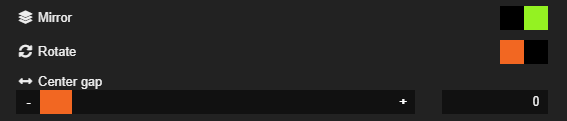
- Here you have two options of mirroring:
ROTATE - opposite side of mirrored picture or CENTER GAP, where you can set how many pixel will be empty space between pictures.
- EXPORT
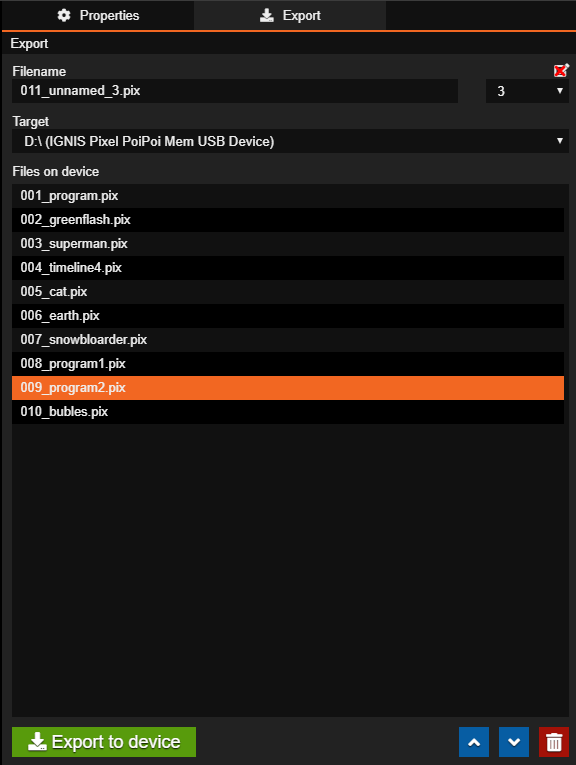
In this section you can export any timeline to your device.
Export Photon - keeps original Photon workflow and exports finished program as .pix. This format is not editable anymore and has fixed setup of resolution, rendering speed, timeline, etc. Use this export for older Photon devices.
Export AuraX - exports AuraX program as .axp and can upload selected timeline directly to AuraX device over WiFi. Use this export for AuraX devices.
File name - here you can set the name of exported files.
Timeline - In case you have more timelines - you choose which timeline you want to upload to your device.
Target - Here you choose target (device) you want to upload your timeline. If you have connect our Photon device to your computer, it will be automatic detected and displayed in target options.
By choosing one of detected device you can overview of all files that device has inside. Here you can also change positions of files or delete them. Files in device are sorted by the prefix number 001_, 002_, 003_
AuraX scan - In AuraX export you can press Scan to find AuraX devices on the same local network. Each device can show name, IP address, LED count and status. The identify/blink button flashes selected device shortly so you know which real device you are uploading to.
AuraX upload validation - Studio checks selected timeline LED count against selected AuraX device. If LED count does not match, upload is blocked or warning is shown, so you do not upload wrong program by mistake.
By the this prefix number you also manage which file (program) will be turned on through WIFI synchronization.
(example: once poi is turn ON and you will choose program 001_ - all other devices will play program 001_ too). You have to always lined up programs by the numbers for perfect WIFI sync!
In case you want export some finished programs, you can also export files to your PC and upload to device like uploading some files on USB disc.
Post-behavior - In Export section you can choose what should happen after the program ends: Exit to standby, Repeat program or Keep last frame.
- TIMELINE
- images
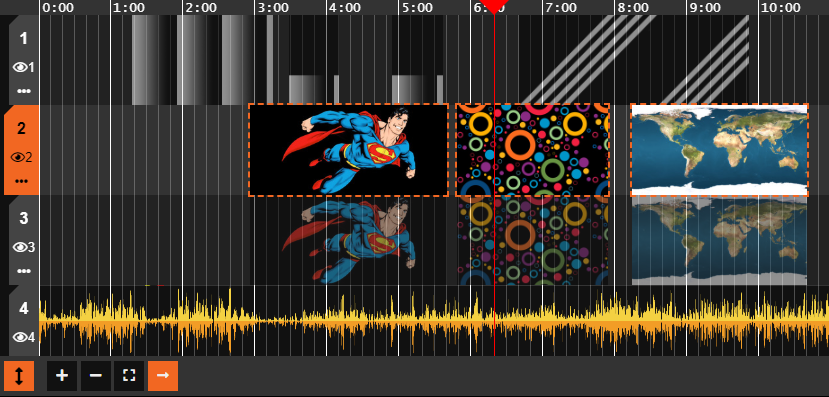
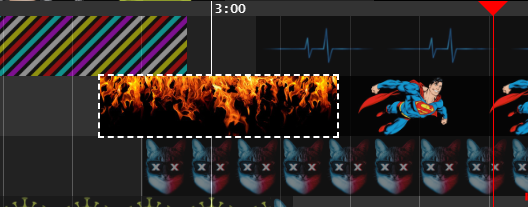
- Here you have two way to add image to the timeline. First way is Drag and drop from library to the timeline, image will have 15sec. (as default). Second way is to select image in your library and left click and drag with your mouse somewhere on your timeline. Start and end of the image will depends on your left click and drag. After placement of your pictures you can still stretch or shrink the image.
- If you hold Shift while dragging a picture or effect to timeline, Studio can place it across multiple timelines at the same time. This is useful when you need the same visual timing on more timelines.
- With long press of CTRL + right click you can select more images and move it or delete. You can also copy and paste this section to more timelines with same set parameters.
Ctrl + C = Copy
Ctrl + V = Paste behind the cursor
Ctrl + Shift + V = Paste on same position
-
- new timeline
You can add new timeline by pressing + button under the last timeline.
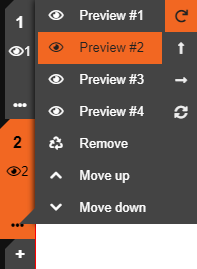
If you want to scroll down, move mouse cursor into the this area and scroll down. On each timeline you can set number of previews
(It does not apply on VERTICAL previews), remove or move timelines up and down. On the right panel you can predefined main move preview.
This ? button can change size of timelines. There is 4 predefined sizes of timelines.
-
- audio
Same like images you can drag and drop audio files in bottom of timelines. If you have placed audio, you can click again on audio and move it. With right click you can delete it.
- moving and zoom in/out
You move along the timeline click and drag from side to side. However, be carefull that you have no image selected when you want to move in timeline, otherwise you will move with selected image instead. Zoom in or out is possible with mouse scroll on timelines section.
- footer icons
In the bottom of program is footer icons, there you have from left:

- resizer of timelines
- zoom in + zoom out - also possible with mouse scroll
- auto layout set optimal zoom by the first and last image
- auto shift timeline If the button is active, timeline will be automatilly moved within red timeline indicatore
- standart media controls
- timekeeper show you time, where is timeline cursor
Follow us!
|